Learning Objectives
After completing this lesson, you'll be able to:
- Understand how user parameters enable end-users to control how workspaces run.
- Configure parameters to take user input through a workspace app.
In this lesson, you will:
- Optional: Watch a demonstration video (if you have not attended the live training).
- Scroll down to read the activity instructions below and follow the steps in your lab.
- Complete the quiz at the end of this lesson.
- Click 'Next' to mark the lesson complete.
Resources
- Starting project | C:\FMEData\Resources\FlowAuthoring\fme-flow-authoring--starting-project.fsproject
- Encryption key | C:\FMEData\Resources\FlowAuthoring\fme-flow-authoring--key.jceks
- Starting workspace | C:\FMEData\Workspaces\CreateDataIntegrationApps\community-map-data-download.fmw
- Complete workspace | C:\FMEData\Workspaces\CreateDataIntegrationApps\community-map-data-download-complete.fmw
If you're taking a live Safe Software-hosted training course or using an on-demand lab for this course, we've already imported the content for this lesson into your FME Flow.
If you're completing this lesson with your own FME Flow, you must import the starting project with the content into your FME Flow.
See FME Flow Authoring: Instructions to Import the Starting Project for directions to import the project to your own FME Flow.
User Parameters
Parameters are controls that define how FME operates, and almost every component in FME has parameters of one type or another. FME uses parameters to reference system settings, control how readers and writers operate, hold values that feed into workspaces, and more. You've likely encountered them while using FME already. In the previous course, you used a parameter to pass source data into a workspace through a workspace app.
Often, workspaces have parameters that take input values to control how the workspace functions; we call these user parameters. Workspace authors create user parameters to easily set specific values at runtime, giving the end-user greater control over how the workspace reads, writes, and transforms their data. There are many types of user parameters; some common to self-serve workflows include:
- Choice to present the user with options to select.
- Coordinate System selects the coordinate system in which to deliver data.
- Define Geometry takes a geographic area of interest as input.
- File/Folder/URL to use as the source data for files and folders in the workspace.
- Text values as input string values to the workspace.

For a complete list of user parameters, see our documentation on Creating and Modifying User Parameter Types.
For more in-depth training on the various types of parameters in FME, you can take Build Self-Serve Workflows with Parameters or the FME Form Advanced module Create Flexible Workspaces with Parameters.
You can create a user parameter directly at the setting where you want to reference the parameter value.
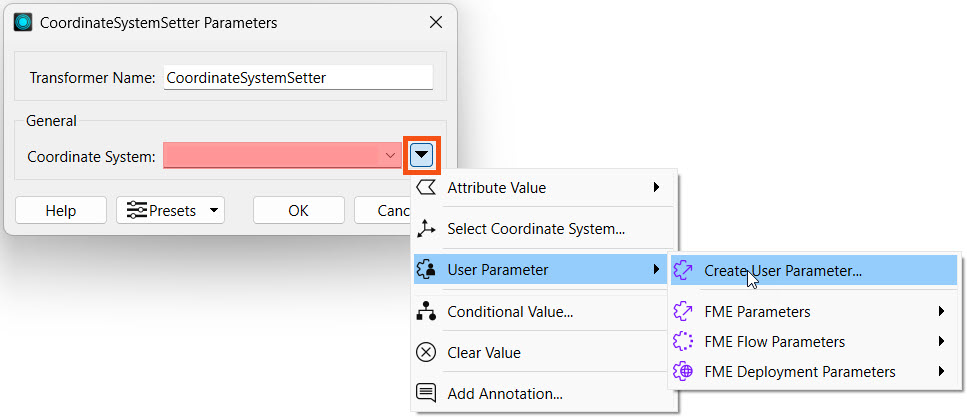
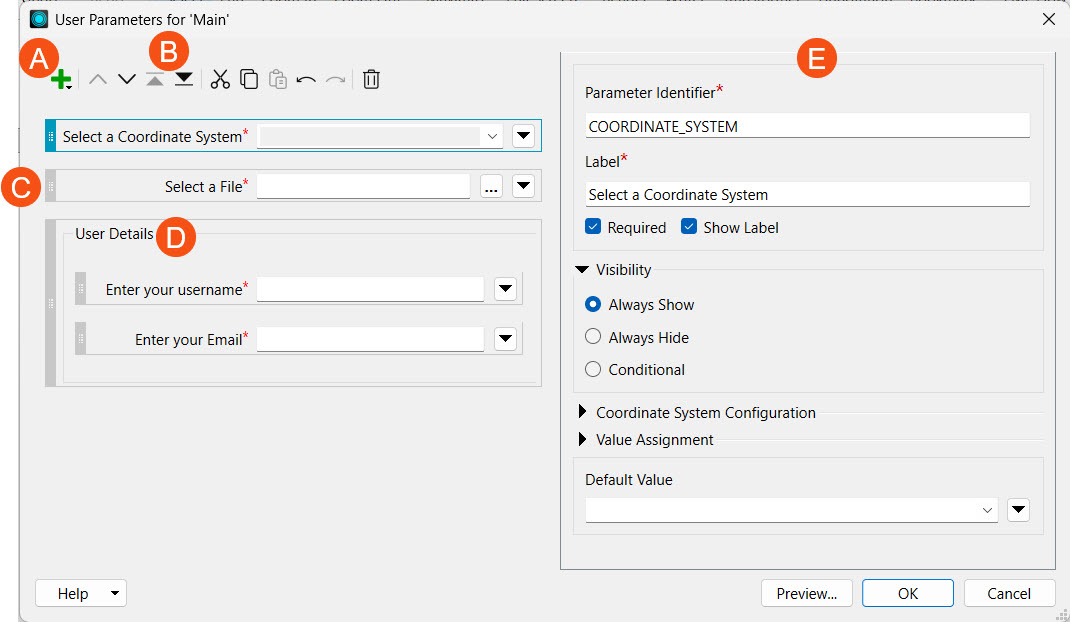
Alternatively, you can create and manage all workspace user parameters from the User Parameter Manager, which you access by right-clicking User Parameters in the Navigator window on FME Workbench and selecting Manage User Parameters.
You can use the User Parameter Manager to add (A), reorder (B and C), group (D), and configure parameters (E). The left-hand side of the User Parameter Manager displays all your user parameters, along with options to add new ones, group, copy and paste, reorder, and delete. The right-hand side shows the properties for the newly created or selected parameter. In the parameter properties, you can customize each parameter's requirements and visibility. If a parameter is required, you must provide a value for the workspace to run; FME disables the Run button if the value is empty. Whether your workspace presents the parameter to the end-user is set by its Visibility: Always Show presents it for input, Always Hide keeps it out of the prompt so the workspace uses the default value, and Conditional lets you control visibility based on another parameter's value. You may want to hide a parameter when you set a value in one place and link to it in multiple places throughout the workspace, without allowing the end-user to change it.
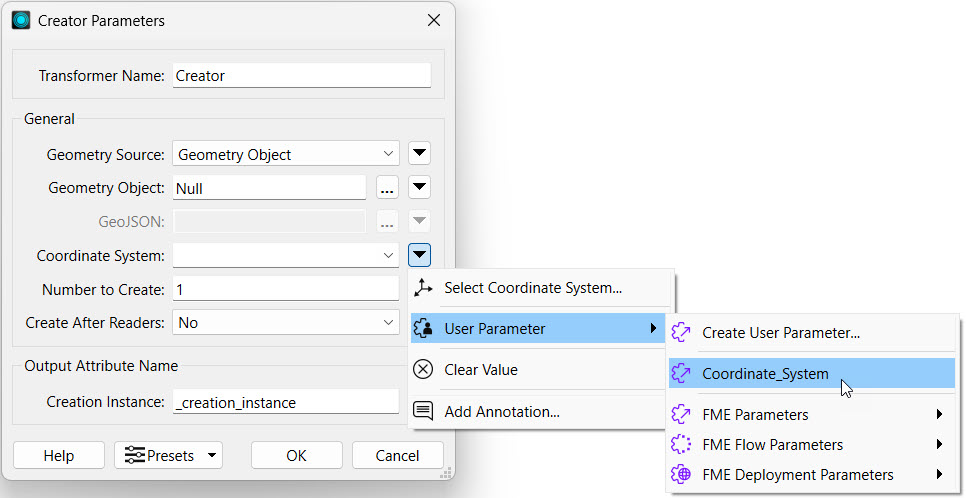
Once you create the parameter, you must link it to the setting you wish to control with the parameter.
Using Parameters in Workspace Apps
After you deploy your workspace with user parameters on FME Flow and begin to create your workspace app, you will see a Parameter Defaults section on the Create Workspace App page. This section will only display parameters whose Visibility is set to Always Show, like the Run Workspace page. If a parameter is set to Always Hide, it will not be visible or editable when you create your app.
For example, a workspace with the following three user parameters will display only the source file and coordinate system parameters in the Parameter Defaults section, since they are set to Always Show. The password parameter is set to Always Hide and does not appear in Parameter Defaults.

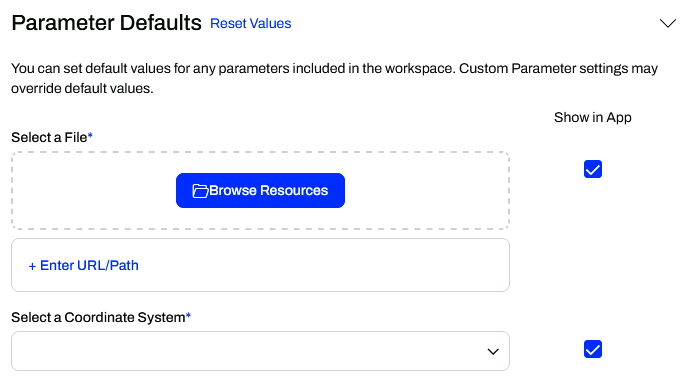
Before creating your app, you can modify the default values set for each parameter or deselect 'Show in App' to remove the parameter from the app.

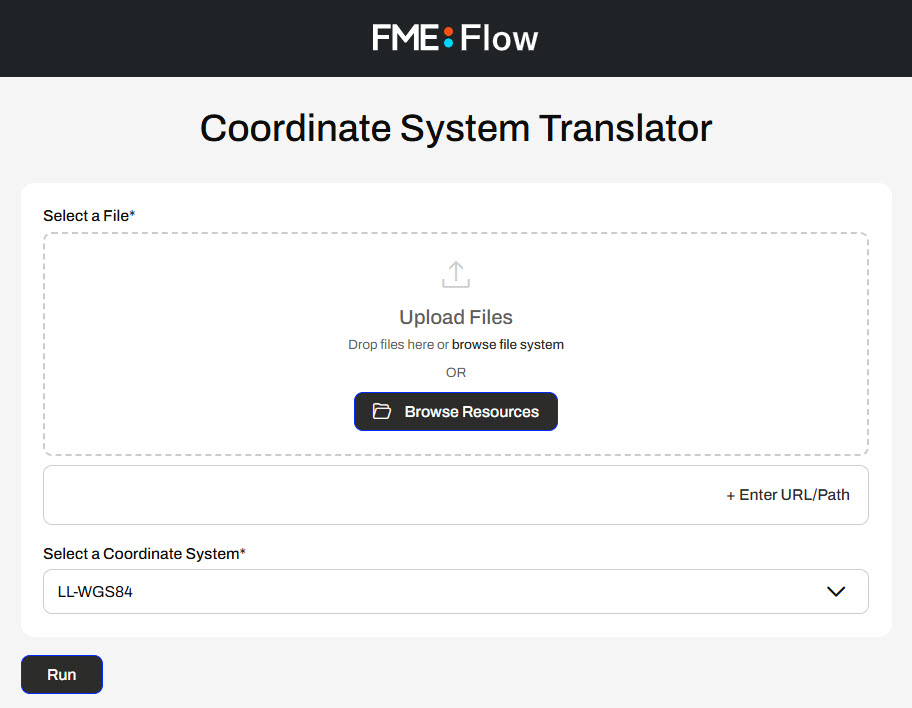
If you do not show your parameter in the app, FME will use the default value for the parameter when running the workspace.

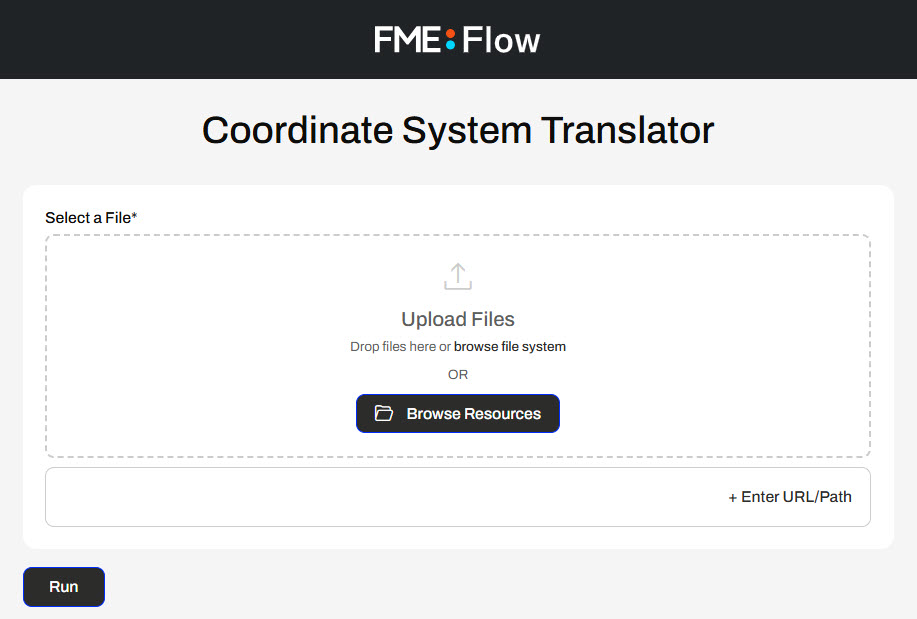
User parameters, their visibility settings, default values, and the ability to hide a parameter in your app let you choose which controls you grant to end-users in your self-serve workflows.
Exercise

Jennifer, a GIS Specialist, has a workspace app that hands colleagues every layer in the community geodatabase as Esri Shapefiles. Colleagues keep asking for specific layers and to have the data in various formats. She wants to add user parameters so app users can choose the layers and output format themselves.
In this exercise, you will:
- Create user parameters from a reader parameter and a writer parameter in FME Workbench.
- Restrict a Choice parameter to a short list of writer formats.
- Republish the workspace and confirm the new parameters appear in the app.
1) Run the Current App
- On FME Flow, open Flow Apps. Ensure you're on the Workspace Apps tab.
- Find the community-data-download app and click its View icon.
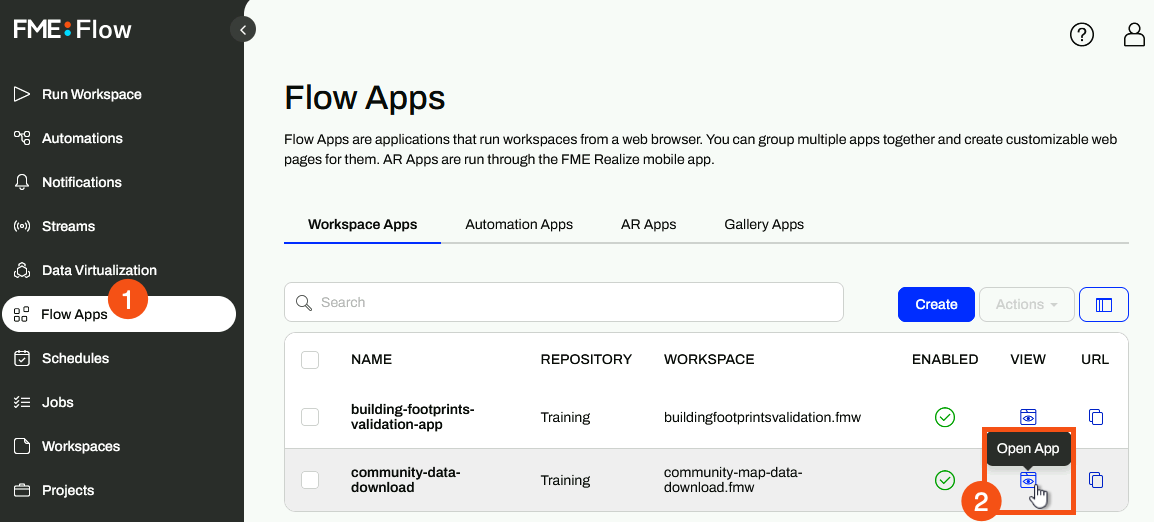
The app opens in another tab. There's nothing to configure, because the workspace has no user parameters yet.
- Click Run.
- FME Flow runs the workspace and zips the output data into the Data Download URL.
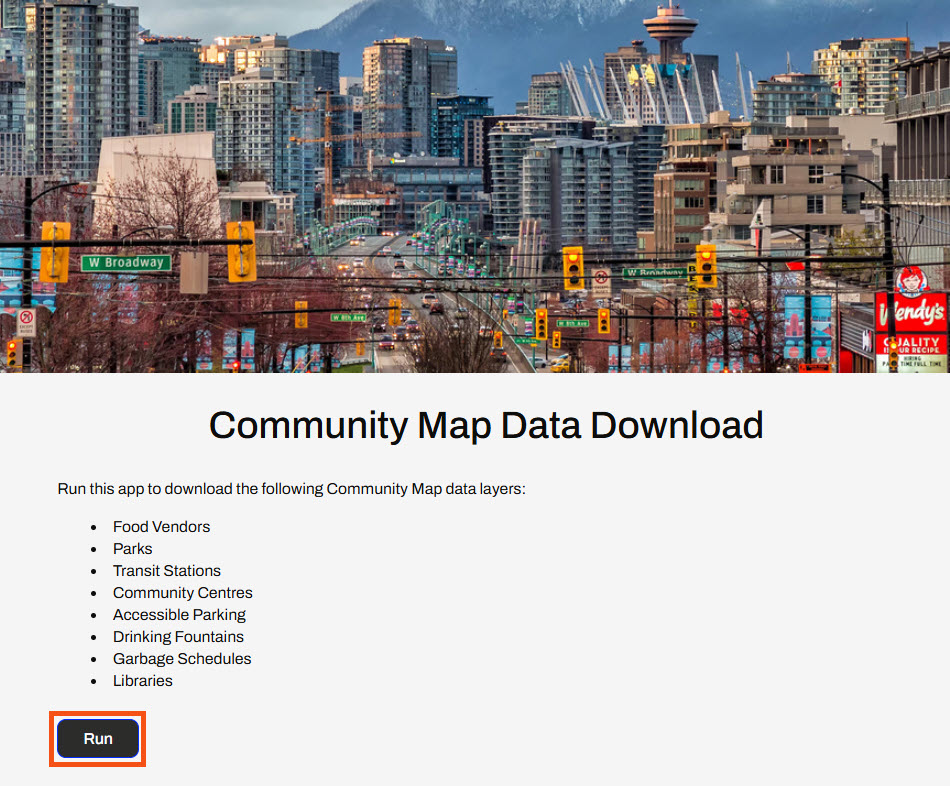
- Click the Data Download URL to download the output data.
- Open the File Explorer and extract the zip file.
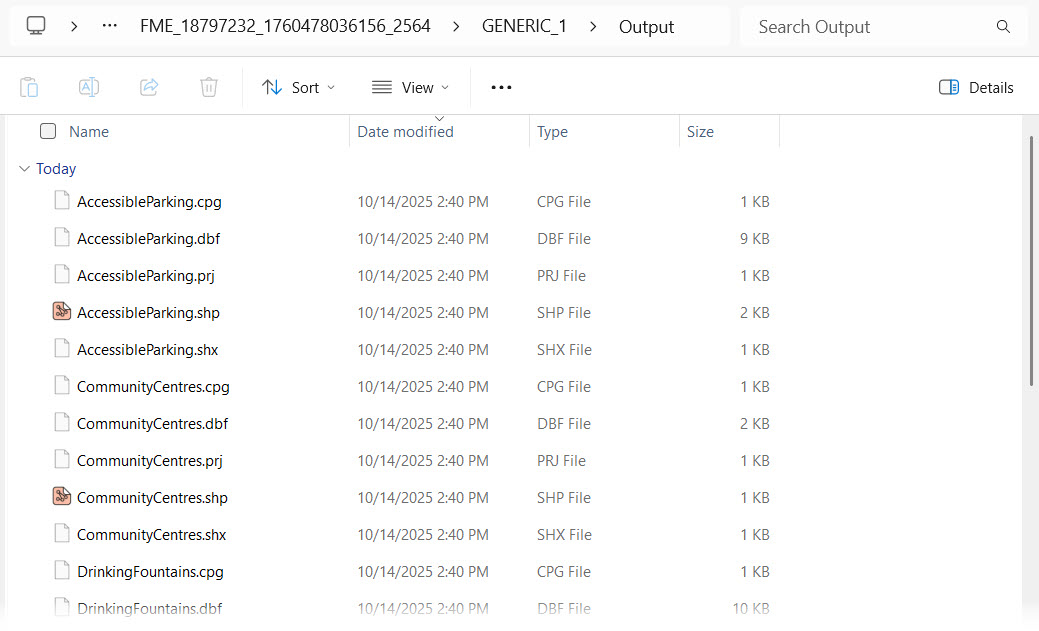
- Every layer in CommunityMap.gdb is written as a shapefile, which is 40 individual files.
2) Open the Starting Workspace
- Open community-map-data-download.fmw (C:\FMEData\Workspaces\CreateDataIntegrationApps\community-map-data-download.fmw) in FME Workbench.
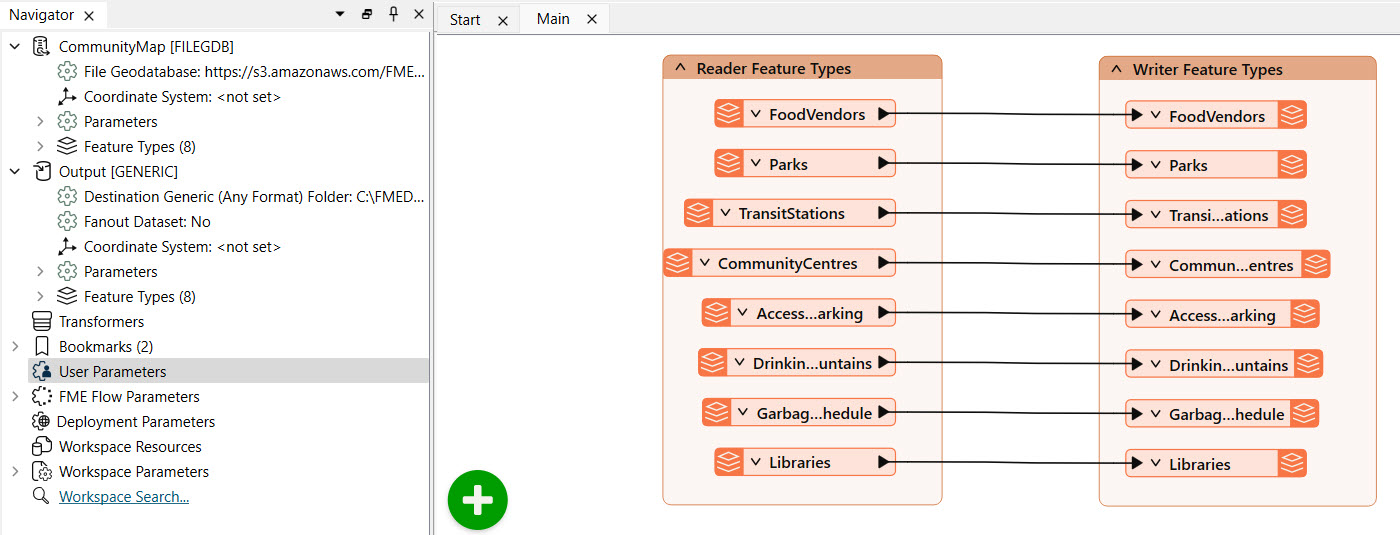
- The workspace has no user parameters yet. You will add two Choice parameters, one for the layers to read and one for the output format.
3) Create a Parameter for the Layers to Read
Creating a user parameter directly from the setting you want to control links the two automatically, saving you from wiring them together afterward.
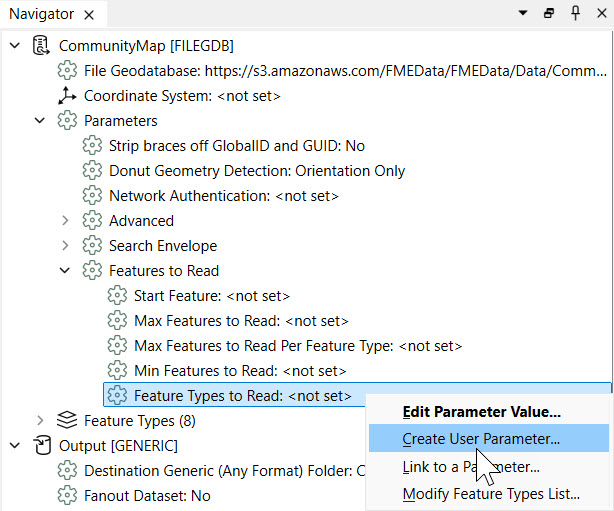
- In the Navigator, expand the CommunityMap reader, then expand Parameters and Features to Read.
- Right-click the Feature Types to Read parameter and select Create User Parameter.
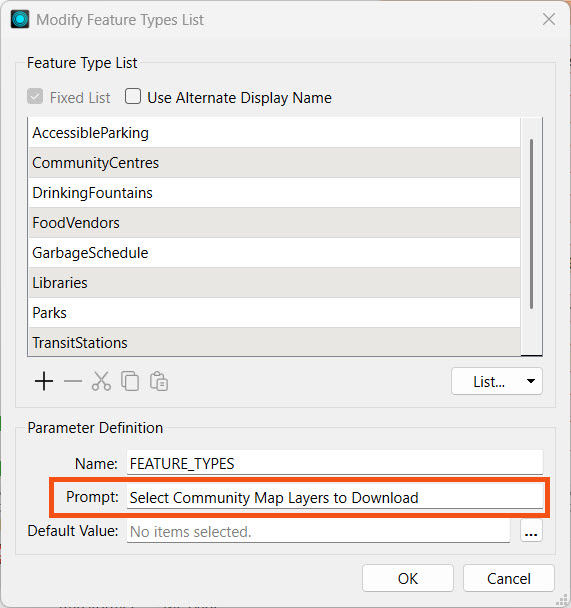
- Change the Prompt to
Select Community Map Layers to Download, then click OK.
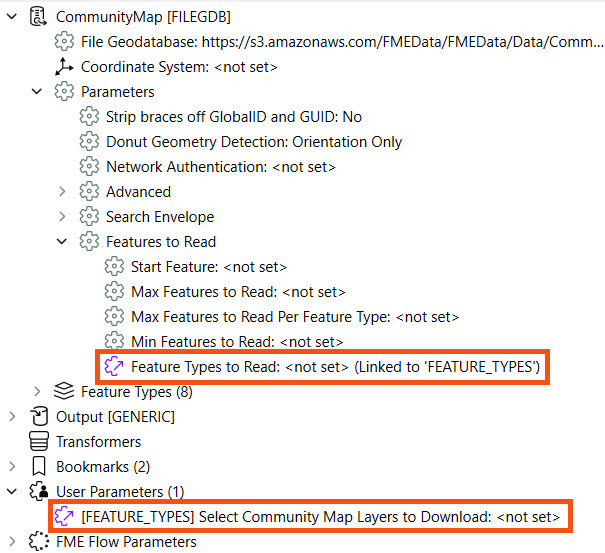
- Confirm the new parameter appears in the Navigator under User Parameters.
- Feature Types to Read now shows that it links to the FEATURE_TYPES parameter.
4) Create a Parameter for the Output Format
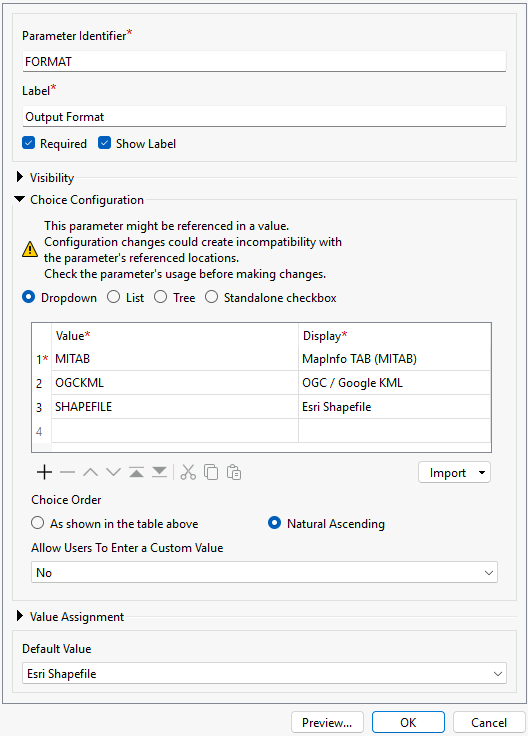
- In the Navigator, right-click User Parameters and select Manage User Parameters.
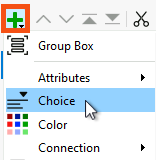
- Click the green + icon and add a Choice parameter.
- Set the Parameter Identifier to
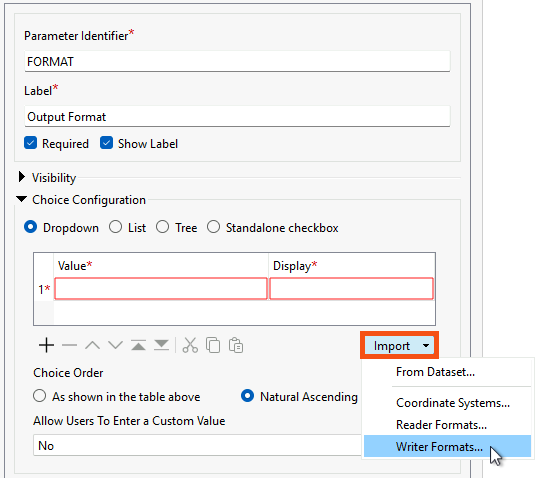
FORMAT and the Label to Output Format.
- Collapse the Visibility section.
- Leave the visibility set to Always Show.
- Expand Choice Configuration, and beneath the table, click Import, then select Writer Formats.
- The Import button may be hidden if your screen is short. Scroll down near the table, or expand the user parameter window vertically to use more screen space.
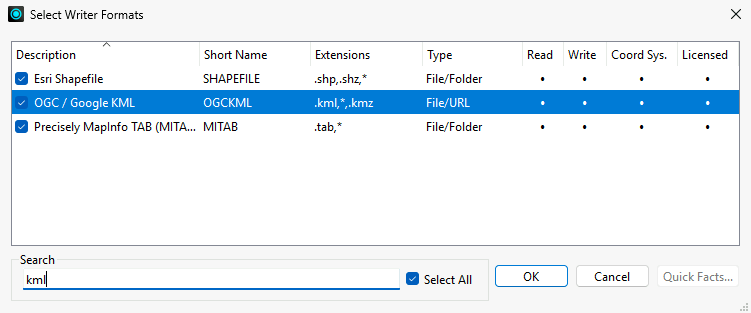
- Search for and select Esri Shapefile, MapInfo TAB, and OGC / Google KML, then click OK.
- You can add more formats later if the app users ask for them.
- Set the Default Value to Esri Shapefile.
- Review the parameter settings and click OK.
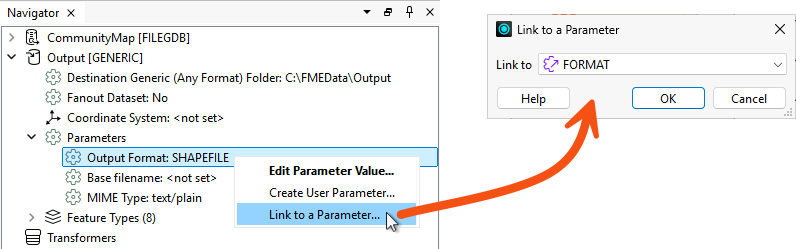
- In the Navigator, expand the Output [GENERIC] writer settings.
- Expand Parameters and right-click the Output Format parameter. Select Link to a Parameter...
- Set Link to FORMAT. Click OK.
5) Publish the Workspace to FME Flow
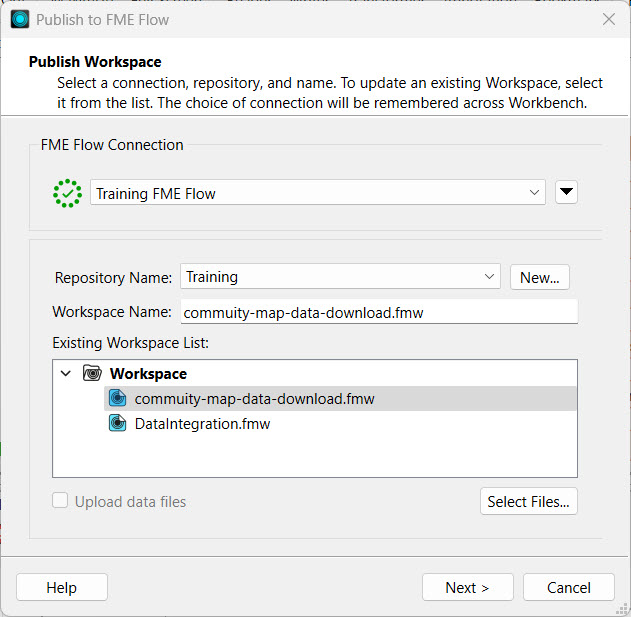
- Save the workspace, then Publish it to FME Flow.

- Select the Training repository, click the community-map-data-download.fmw workspace to overwrite it, then click Next.
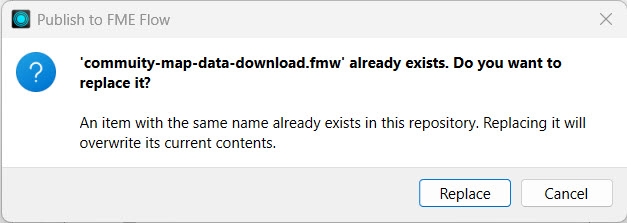
- When FME warns about replacing the existing workspace, click Replace.
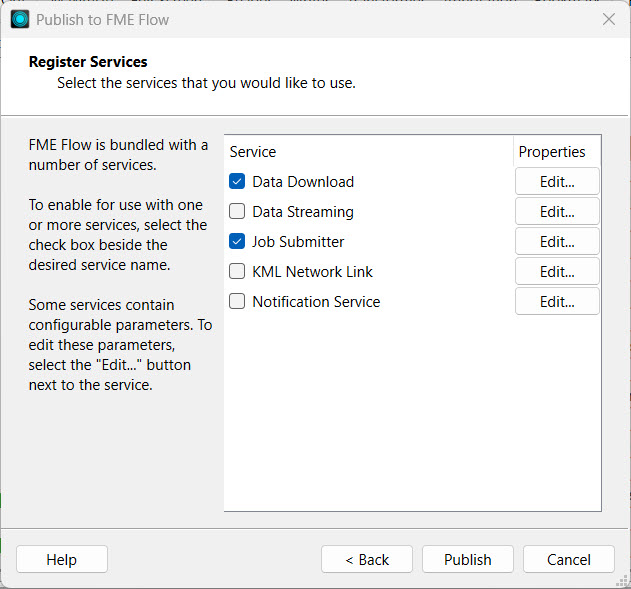
- Register the workspace with the Data Download and Job Submitter services, then click Publish.
6) Edit the Workspace App
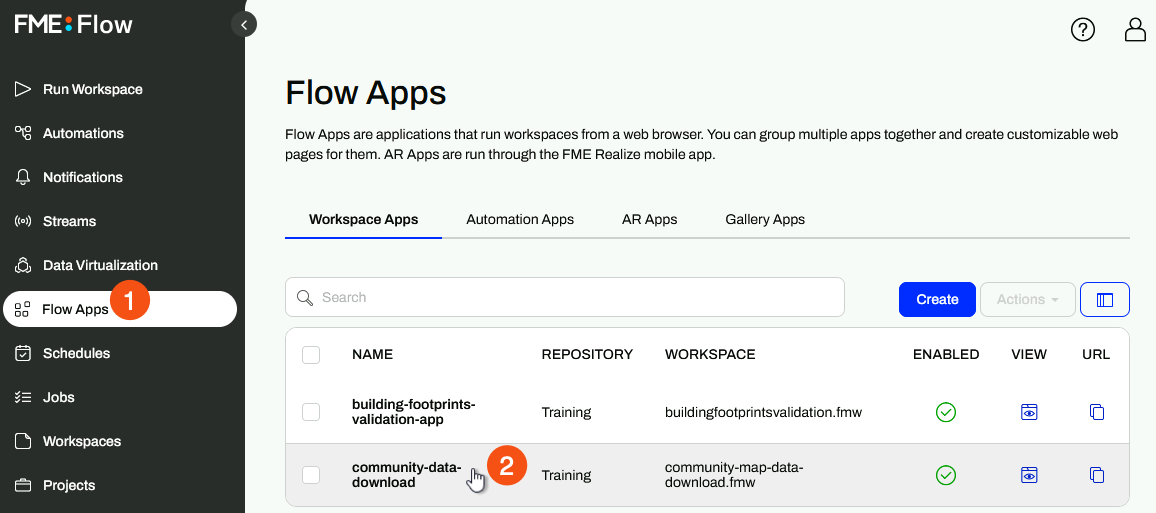
- Return to FME Flow. Open Flow Apps to the Workspace Apps tab.
- Click the community-data-download app to edit it.
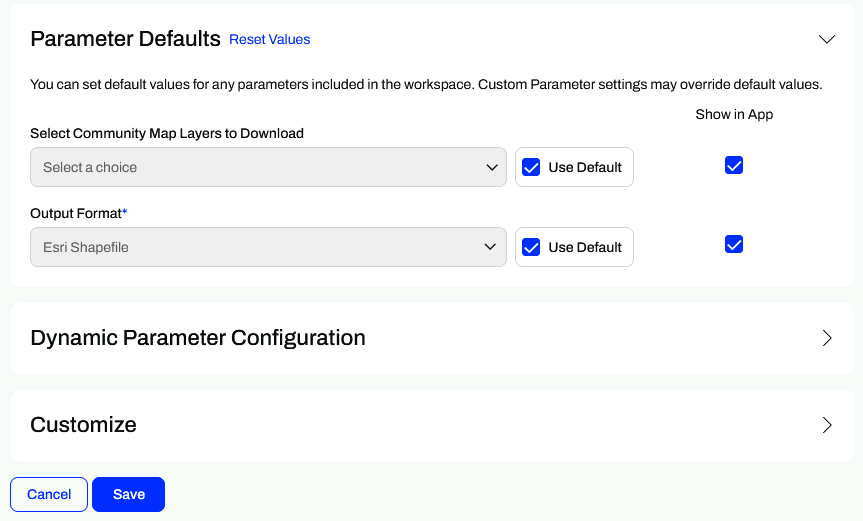
- Scroll down and expand Parameter Defaults, confirm both new parameters are listed, then click Save.
7) Run the Workspace App
- Click View App to open it.
- Use the drop-down options to select a few layers and an output format, then click Run.
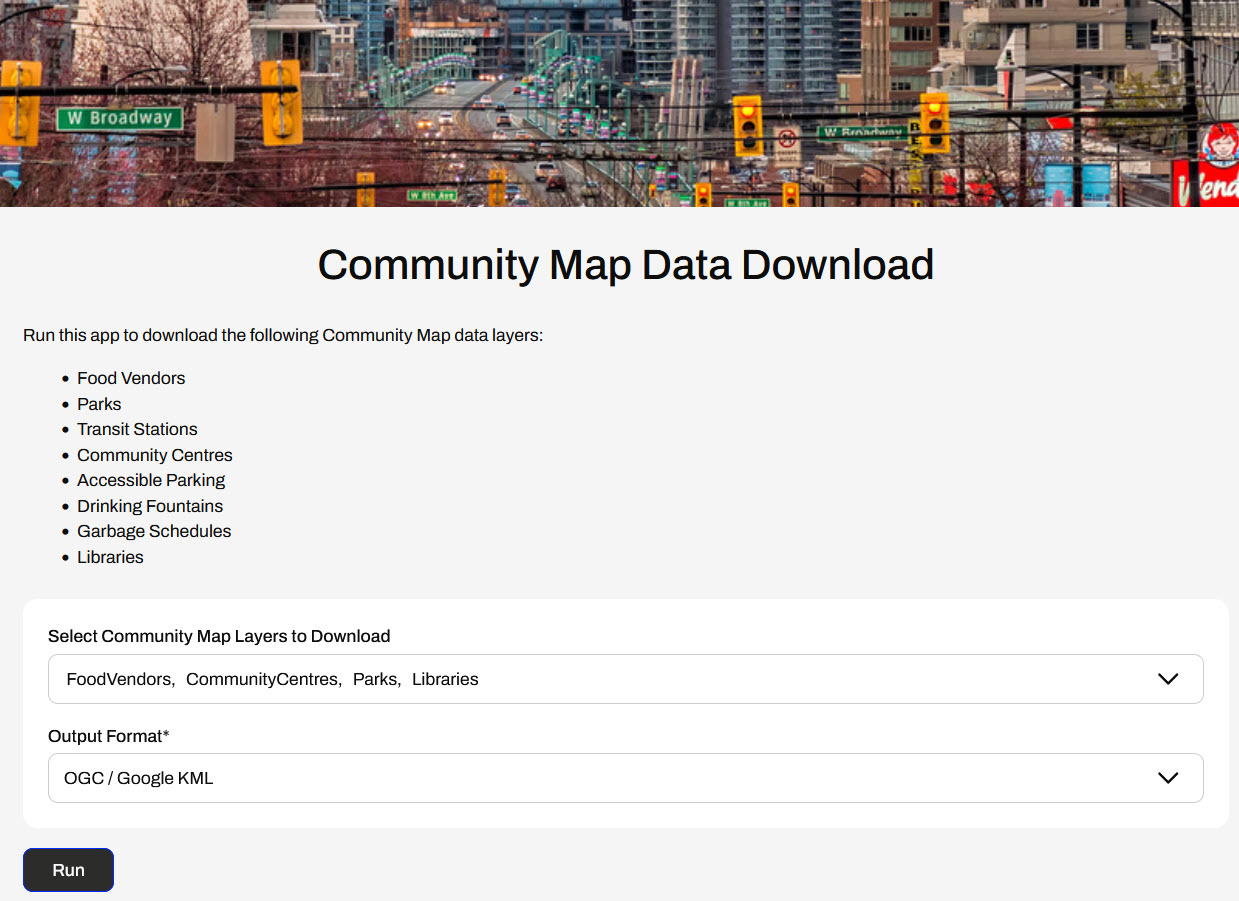
- Download the data from the Data Download URL and confirm it contains only the layers you chose, in the format you chose.
You have created a self-serve app where end users may choose which layers they receive and in which format.
Resources
- Starting project | C:\FMEData\Resources\FlowAuthoring\fme-flow-authoring--starting-project.fsproject
- Encryption key | C:\FMEData\Resources\FlowAuthoring\fme-flow-authoring--key.jceks
- Starting workspace | C:\FMEData\Workspaces\CreateDataIntegrationApps\community-map-data-download.fmw
- Complete workspace | C:\FMEData\Workspaces\CreateDataIntegrationApps\community-map-data-download-complete.fmw
If you're taking a live Safe Software-hosted training course or using an on-demand lab for this course, we've already imported the content for this lesson into your FME Flow.
If you're completing this lesson with your own FME Flow, you must import the starting project with the content into your FME Flow.
See FME Flow Authoring: Instructions to Import the Starting Project for directions to import the project to your own FME Flow.
User Parameters
Parameters are controls that define how FME operates, and almost every component in FME has parameters of one type or another. FME uses parameters to reference system settings, control how readers and writers operate, hold values that feed into workspaces, and more. You've likely encountered them while using FME already. In the previous course, you used a parameter to pass source data into a workspace through a workspace app.
Often, workspaces have parameters that take input values to control how the workspace functions; we call these user parameters. Workspace authors create user parameters to easily set specific values at runtime, giving the end-user greater control over how the workspace reads, writes, and transforms their data. There are many types of user parameters; some common to self-serve workflows include:
- Choice to present the user with options to select.
- Coordinate System selects the coordinate system in which to deliver data.
- Define Geometry takes a geographic area of interest as input.
- File/Folder/URL to use as the source data for files and folders in the workspace.
- Text values as input string values to the workspace.
For a complete list of user parameters, see our documentation on Creating and Modifying User Parameter Types.
For more in-depth training on the various types of parameters in FME, you can take Build Self-Serve Workflows with Parameters or the FME Form Advanced module Create Flexible Workspaces with Parameters.
You can create a user parameter directly at the setting where you want to reference the parameter value.
Alternatively, you can create and manage all workspace user parameters from the User Parameter Manager, which you access by right-clicking User Parameters in the Navigator window on FME Workbench and selecting Manage User Parameters.
You can use the User Parameter Manager to add (A), reorder (B and C), group (D), and configure parameters (E). The left-hand side of the User Parameter Manager displays all your user parameters, along with options to add new ones, group, copy and paste, reorder, and delete. The right-hand side shows the properties for the newly created or selected parameter. In the parameter properties, you can customize each parameter's requirements and visibility. If a parameter is required, you must provide a value for the workspace to run; FME disables the Run button if the value is empty. Whether your workspace presents the parameter to the end-user is set by its Visibility: Always Show presents it for input, Always Hide keeps it out of the prompt so the workspace uses the default value, and Conditional lets you control visibility based on another parameter's value. You may want to hide a parameter when you set a value in one place and link to it in multiple places throughout the workspace, without allowing the end-user to change it.
Once you create the parameter, you must link it to the setting you wish to control with the parameter.
Using Parameters in Workspace Apps
After you deploy your workspace with user parameters on FME Flow and begin to create your workspace app, you will see a Parameter Defaults section on the Create Workspace App page. This section will only display parameters whose Visibility is set to Always Show, like the Run Workspace page. If a parameter is set to Always Hide, it will not be visible or editable when you create your app.
For example, a workspace with the following three user parameters will display only the source file and coordinate system parameters in the Parameter Defaults section, since they are set to Always Show. The password parameter is set to Always Hide and does not appear in Parameter Defaults.
Before creating your app, you can modify the default values set for each parameter or deselect 'Show in App' to remove the parameter from the app.
If you do not show your parameter in the app, FME will use the default value for the parameter when running the workspace.
User parameters, their visibility settings, default values, and the ability to hide a parameter in your app let you choose which controls you grant to end-users in your self-serve workflows.
Exercise
Jennifer, a GIS Specialist, has a workspace app that hands colleagues every layer in the community geodatabase as Esri Shapefiles. Colleagues keep asking for specific layers and to have the data in various formats. She wants to add user parameters so app users can choose the layers and output format themselves.
In this exercise, you will:
- Create user parameters from a reader parameter and a writer parameter in FME Workbench.
- Restrict a Choice parameter to a short list of writer formats.
- Republish the workspace and confirm the new parameters appear in the app.
1) Run the Current App
- On FME Flow, open Flow Apps. Ensure you're on the Workspace Apps tab.
- Find the community-data-download app and click its View icon.
The app opens in another tab. There's nothing to configure, because the workspace has no user parameters yet.
- Click Run.
- FME Flow runs the workspace and zips the output data into the Data Download URL.
- Click the Data Download URL to download the output data.
- Open the File Explorer and extract the zip file.
- Every layer in CommunityMap.gdb is written as a shapefile, which is 40 individual files.
2) Open the Starting Workspace
- Open community-map-data-download.fmw (C:\FMEData\Workspaces\CreateDataIntegrationApps\community-map-data-download.fmw) in FME Workbench.
- The workspace has no user parameters yet. You will add two Choice parameters, one for the layers to read and one for the output format.
3) Create a Parameter for the Layers to Read
Creating a user parameter directly from the setting you want to control links the two automatically, saving you from wiring them together afterward.
- In the Navigator, expand the CommunityMap reader, then expand Parameters and Features to Read.
- Right-click the Feature Types to Read parameter and select Create User Parameter.
- Change the Prompt to
Select Community Map Layers to Download, then click OK.
- Confirm the new parameter appears in the Navigator under User Parameters.
- Feature Types to Read now shows that it links to the FEATURE_TYPES parameter.
4) Create a Parameter for the Output Format
- In the Navigator, right-click User Parameters and select Manage User Parameters.
- Click the green + icon and add a Choice parameter.
- Set the Parameter Identifier to
FORMAT and the Label to Output Format.
- Collapse the Visibility section.
- Leave the visibility set to Always Show.
- Expand Choice Configuration, and beneath the table, click Import, then select Writer Formats.
- The Import button may be hidden if your screen is short. Scroll down near the table, or expand the user parameter window vertically to use more screen space.
- Search for and select Esri Shapefile, MapInfo TAB, and OGC / Google KML, then click OK.
- You can add more formats later if the app users ask for them.
- Set the Default Value to Esri Shapefile.
- Review the parameter settings and click OK.
- In the Navigator, expand the Output [GENERIC] writer settings.
- Expand Parameters and right-click the Output Format parameter. Select Link to a Parameter...
- Set Link to FORMAT. Click OK.
5) Publish the Workspace to FME Flow
- Save the workspace, then Publish it to FME Flow.
- Select the Training repository, click the community-map-data-download.fmw workspace to overwrite it, then click Next.
- When FME warns about replacing the existing workspace, click Replace.
- Register the workspace with the Data Download and Job Submitter services, then click Publish.
6) Edit the Workspace App
- Return to FME Flow. Open Flow Apps to the Workspace Apps tab.
- Click the community-data-download app to edit it.
- Scroll down and expand Parameter Defaults, confirm both new parameters are listed, then click Save.
7) Run the Workspace App
- Click View App to open it.
- Use the drop-down options to select a few layers and an output format, then click Run.
- Download the data from the Data Download URL and confirm it contains only the layers you chose, in the format you chose.
You have created a self-serve app where end users may choose which layers they receive and in which format.